Customer setup guideReviewed August 5, 2026

Make every outbound call feel trusted.

Establish a customer-owned Twilio number, verify your business identity, and prepare branded caller display for your Lacy.ai phone agents.

Built for speed-to-lead outreach, where recognition can help turn more high-intent calls into conversations.
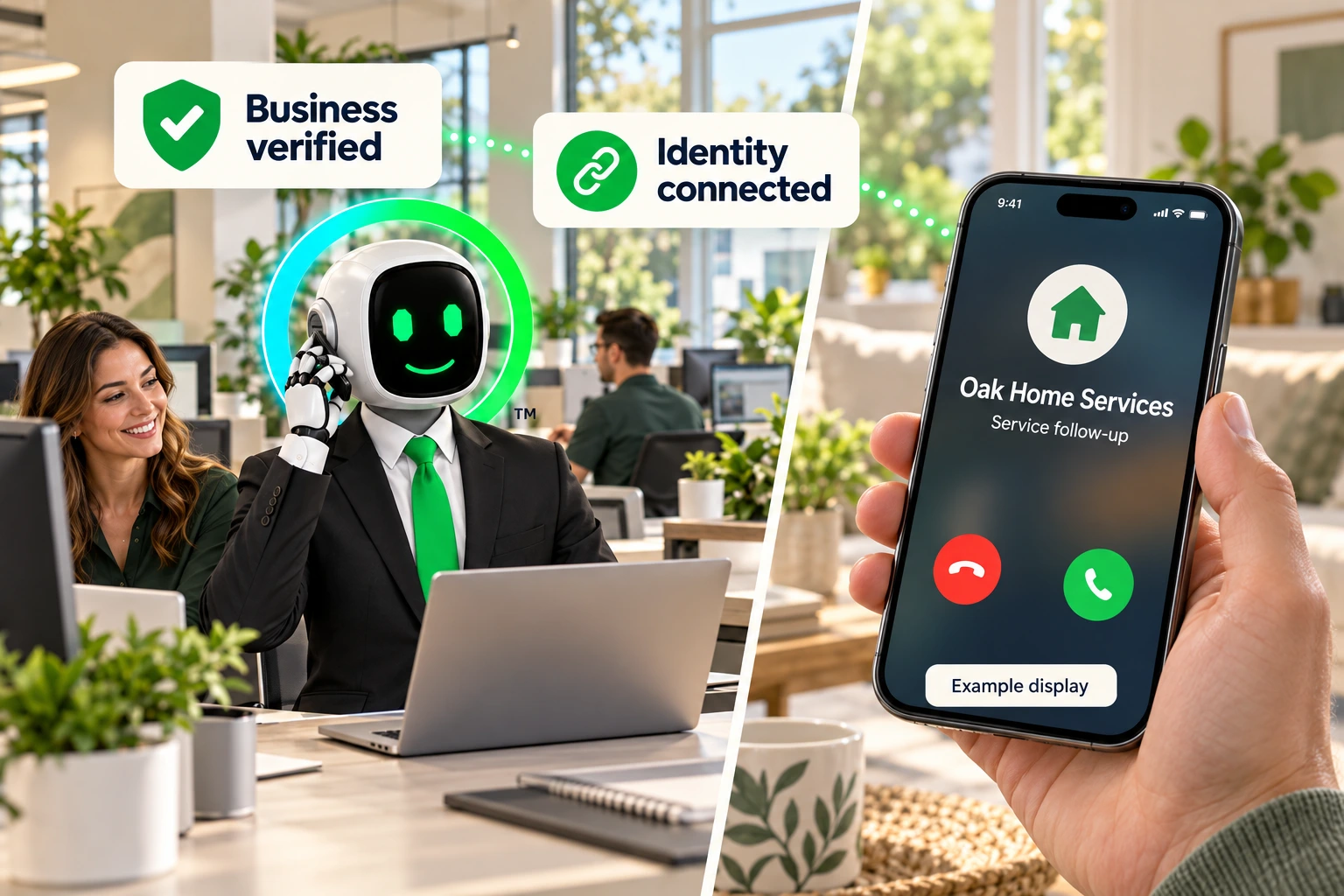

Lacy.ai robot with neon halo and trademark
●   Trusted identity ready

The outcome

A recognizable business identity at the moment a lead receives your call.

01 Recognizable number
02 Verified business name
03 Logo + call reason, where supported

Choose your level

Start with the foundation. Add richer branding where it matters.

Lacy.ai recommends completing CNAM first, then adding US Enhanced Branded Calling when logo display is important.

Recommended pathCNAMthenEnhanced branded calling
01

CNAM

Recipient may see

Business name + number

Best for

Free baseline identity

02

Basic branded calling

Recipient may see

Business display name

Best for

Supported mobile networks

04

Voice Integrity

Recipient may see

No new brand element

Best for

Spam-label remediation

Before you begin

Prepare these five essentials.

1

Account owner

Authorized administrator

2

Business identity

Legal name, EIN, website, address

3

Representative

Legal name, title, email, phone

4

Outbound number

Customer-owned Twilio number

5

Brand assets

Display name, privacy URL, logo

Customer steps inside Twilio

Complete the registrations in order.

01

Create and fund your Twilio account

  1. Create the account in your organization’s legal name using a company-controlled email.
  2. Upgrade from trial and add a billing method.
  3. Purchase the US number your Lacy.ai agent will use.
02

Create the Primary Business Compliance Profile

  1. Open Trust Hub → Profiles → Primary → Business Profile.
  2. Enter the representative and exact legal business information.
  3. Choose Direct Customer, review, and submit.
  4. Wait for Twilio Approved.
03

Register the number for SHAKEN/STIR

  1. Open Trust Hub → Registrations → SHAKEN/STIR.
  2. Select the approved Compliance Profile.
  3. Assign the same outbound number and submit.
04

Register the baseline caller name with CNAM

  1. Open Registrations → CNAM → Create registration.
  2. Enter a recognizable display name within 15 characters.
  3. Assign the number and submit.
05

Add Enhanced Branded Calling

  1. Confirm the profile includes an EIN and SHAKEN/STIR is enabled.
  2. Prepare the display name, logo, call reason, privacy URL, and use case.
  3. Prepare a 32-bit BMP logo at exactly 256 × 256 pixels.
  4. Submit the Branded Calling registration and assign the number after approval.
06

Register for Voice Integrity

  1. Select the approved profile and same outbound number.
  2. Submit and monitor status.
  3. Continue responsible, consent-based calling practices.
07

Test the approved caller display

  1. Confirm every selected registration is active.
  2. Call multiple supported devices and carriers.
  3. Document the number, name, logo, call reason, and any spam label.

Connect to Lacy.ai

Use the dedicated Twilio import. The trunk is created automatically.

TwilioLacy.aiAssistant
01

Import the approved number

  1. Open Phone Numbers in Lacy.ai.
  2. Select Import a number → Twilio.
  3. Enter the LIVE Account SID and Auth Token.
  4. Select the approved branded number and confirm.
  5. Wait until the connection shows Active.
02

Assign it to the outbound agent

  1. Open Assistants and select the outbound assistant.
  2. Open Settings → Phone Numbers.
  3. Select the imported number and save.
  4. Place controlled outbound and inbound test calls.

Troubleshooting

Four common connection issues.

Trial account only allows one SIP trunk — Twilio 21244

Upgrade the Twilio account, then retry. Delete an existing trunk only after confirming it is unused.

Twilio credentials are incorrect — 20003 / HTTP 401

Use LIVE values, not Test Credentials. Ensure both values belong to the account that owns the branded number.

Import succeeds, but outbound calls fail

Check the Twilio balance and Voice Geographic Permissions, then retest.

Invalid SIP Trunk SID or Needs attention

Open Connections in Lacy.ai and select Troubleshoot. Wait 30 seconds, refresh, and contact Support if the error remains.

Important SMS distinction

Voice branding does not add a logo to standard SMS.

CNAM and Branded Calling apply to voice calls. A2P 10DLC supports compliant business messaging, but standard SMS still appears from the phone number. Twilio RCS Business Messaging is a separate product.

Manual reference only

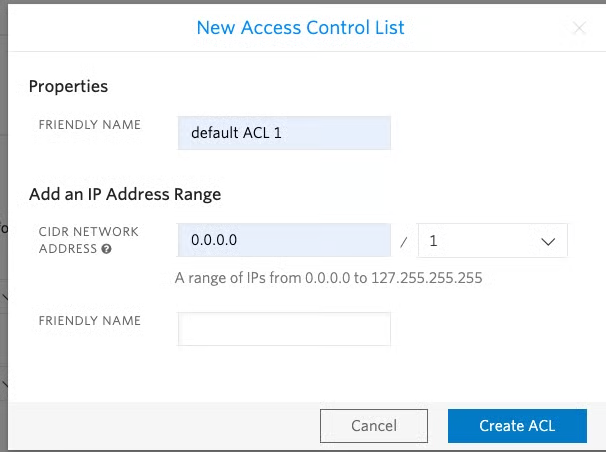
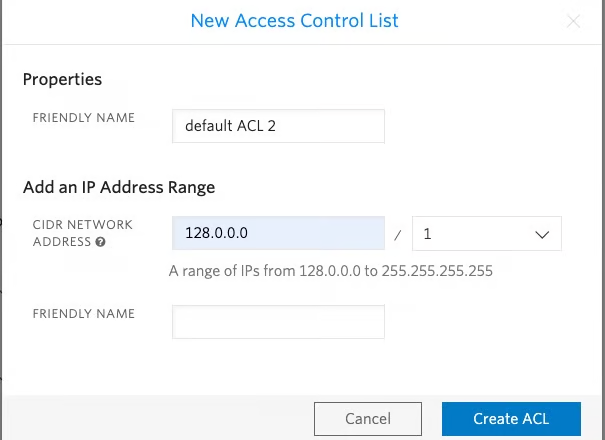
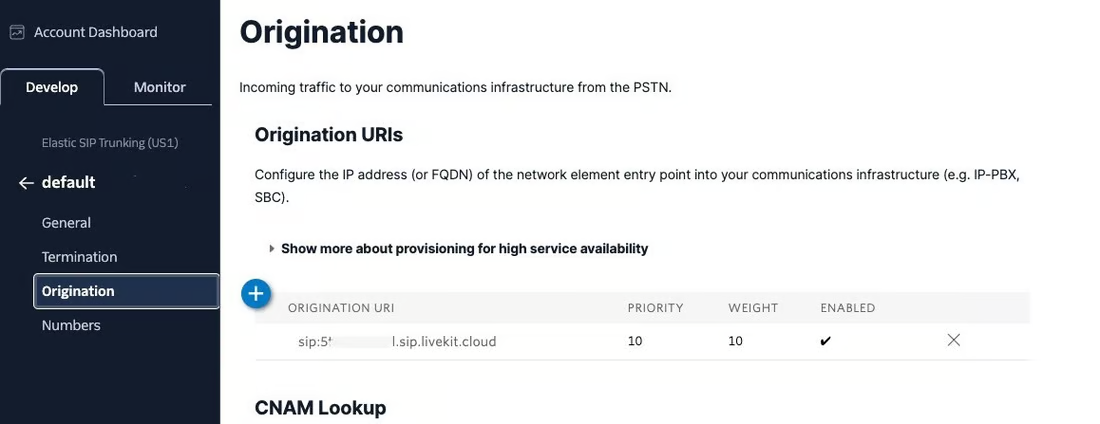
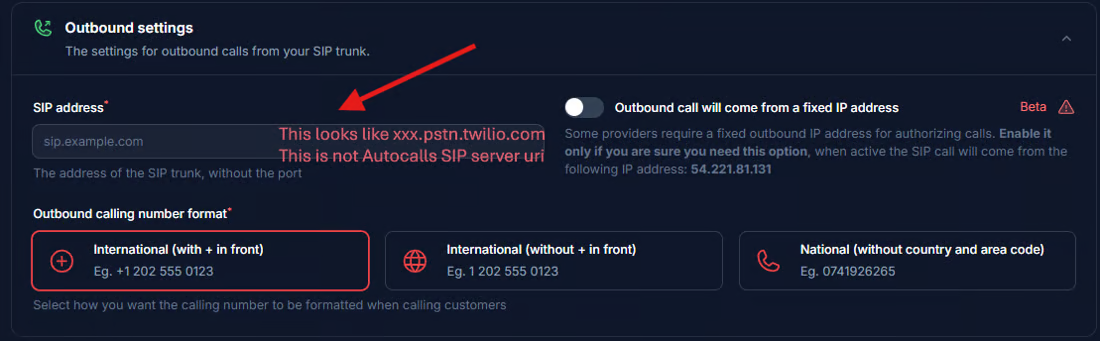
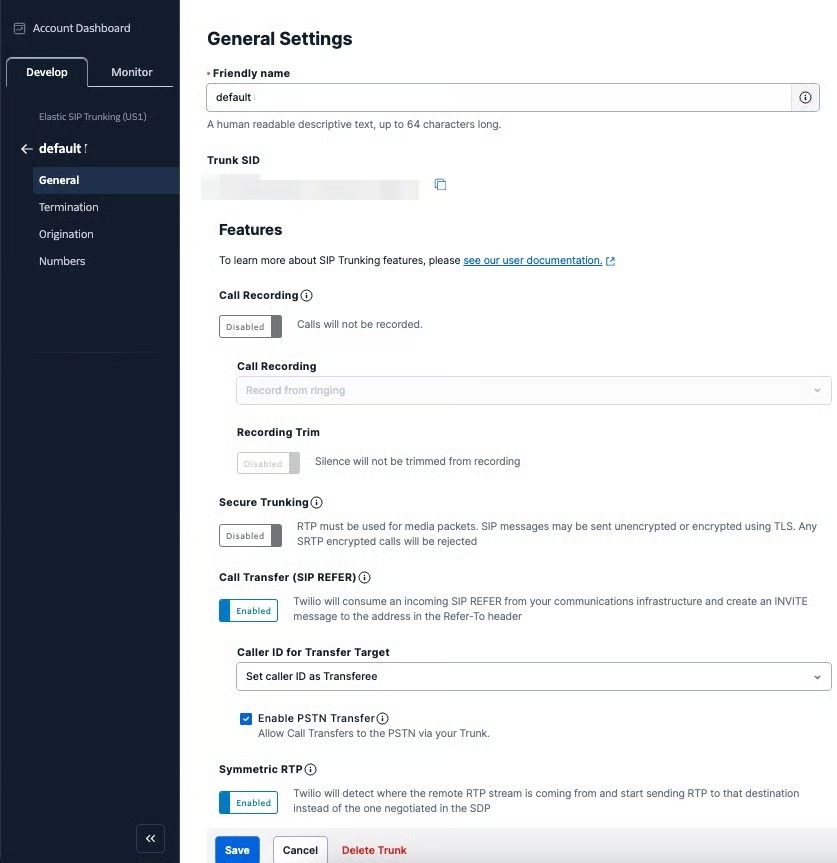
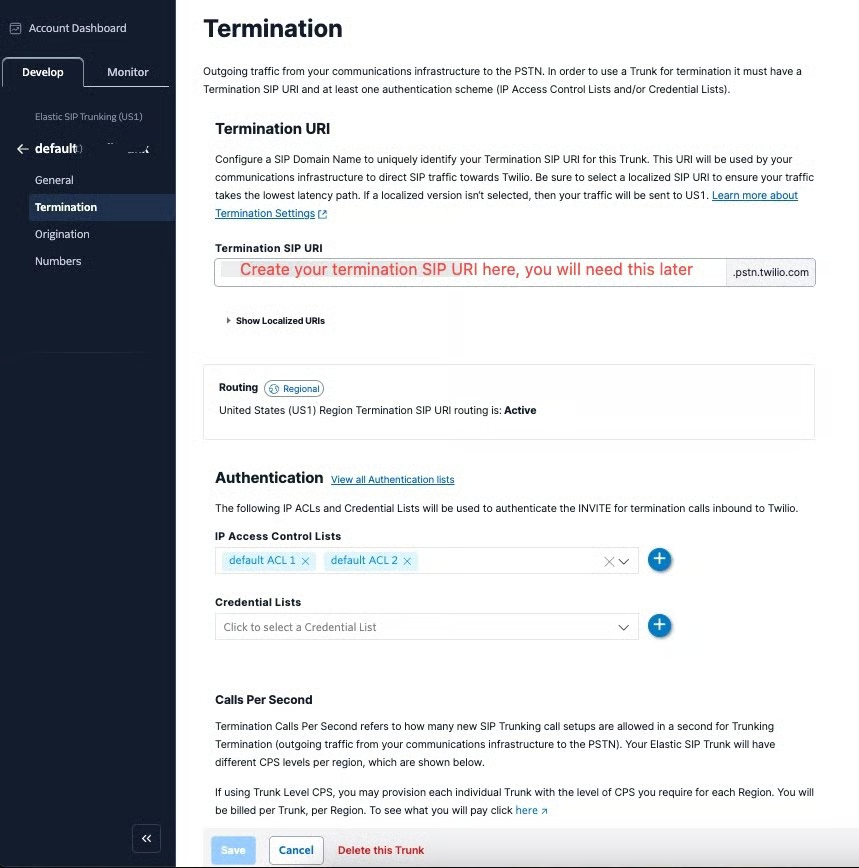
Use these screens only when Lacy.ai Support directs a manual setup.

The dedicated Twilio import is the recommended path. Historical access-control screenshots must never be copied into a production configuration.
Final customer checklist

Ready for a controlled production launch?

01Customer-owned, paid Twilio account is active
02Outbound Twilio number is purchased and retained
03Primary Business Compliance Profile is approved
04SHAKEN/STIR is approved or active
05CNAM is approved with the correct short name
06Enhanced Branded Calling is approved, if selected
07Voice Integrity is approved or active, if selected
08LIVE credentials were used from the same account
09Imported number is Active and assigned to the assistant
10Twilio billing is funded
11Inbound and outbound testing is complete
12All connection errors are resolved before launch

Official references

Keep the source documentation close.

Twilio availability, fees, timing, coverage, and Console navigation can change. Verify current requirements before implementation.